
How to Transcribe Video Audio
Extract transcript context from videos so lectures, meetings, tutorials, and screen recordings can become searchable notes, outlines, slide summaries, or Word-style study material.
Best for
Best for students, researchers, teachers, creators, and teams that need searchable text alongside visual slide extraction rather than a disconnected transcript file.
Start speech to textProduct screenshots
These screenshots are captured from real Video2PPT product pages so the guide is grounded in the current workflow UI.
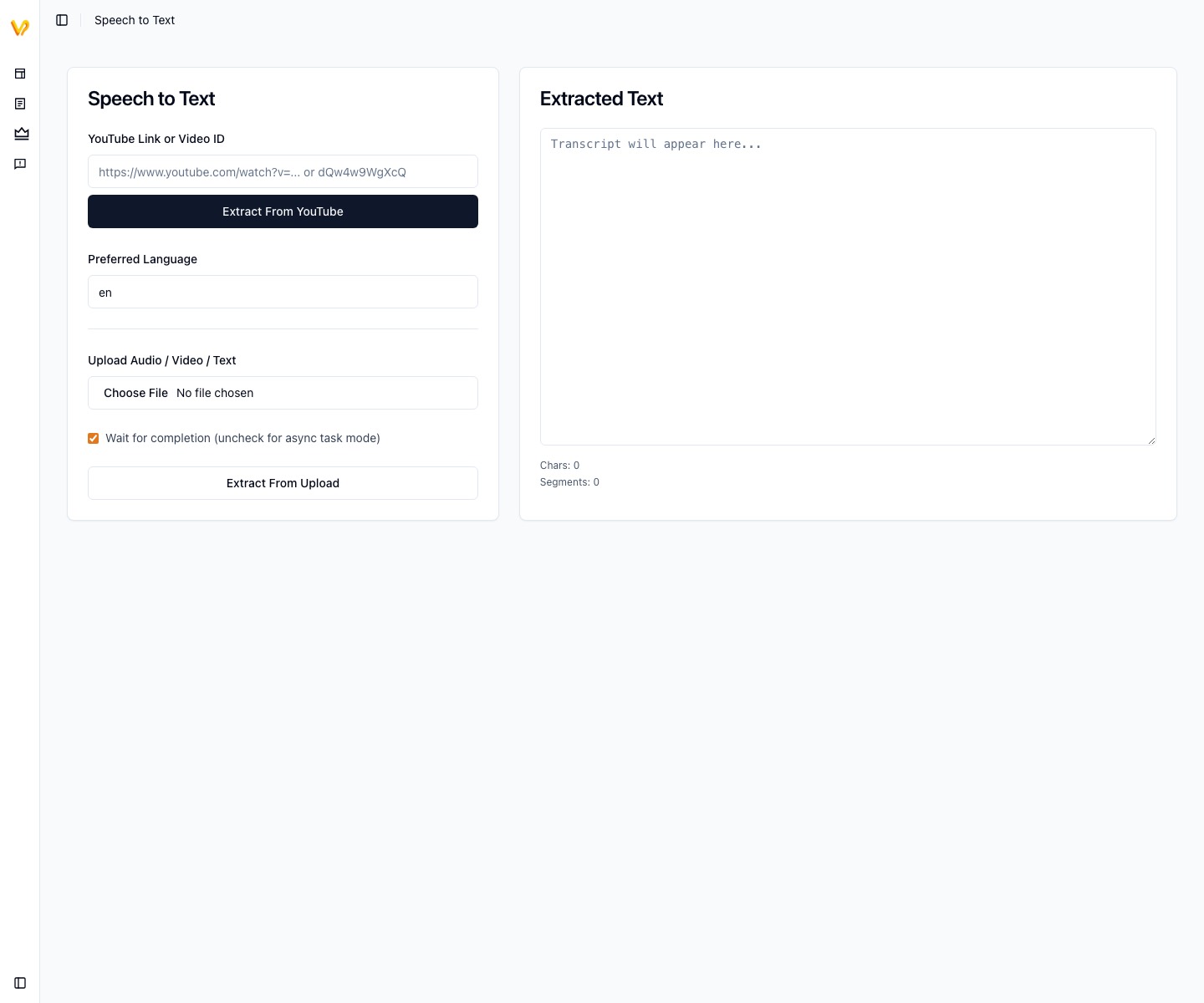
Speech to text workflow
The speech-to-text workflow used for transcript-first video analysis.
GIF walkthrough placeholder
These placeholders mark the exact workflow moments that should become short product GIFs.
GIF slotGIF placeholder: video transcript to notes
Replace this image with a GIF showing video input, transcript extraction, timestamp review, and using transcript beside slide frames.
Step-by-step workflow
- 1Upload a video or provide a supported online link through the speech-to-text or video workflow.
- 2Extract transcript text from the audio track or from available source captions when supported.
- 3Review timestamps, speaker context, proper nouns, formulas, product names, and technical terms.
- 4Use the transcript beside extracted frames to understand why each visual moment matters.
- 5Export the result into notes, Word-style material, summaries, or a slide deck with visual context.
In-product details
Transcript role
The product includes speech-to-text and video-to-Word style routes, but the highest-value workflow is transcript plus visual frames, not transcript alone.
Online context
For supported online videos, transcript availability depends on the source and extraction path. Some videos have captions; some require audio transcription; some are blocked.
Export fit
Use PPTX or PDF when visuals matter, and use Word-style output when the spoken explanation is the primary artifact.
Why transcript matters in a slide extraction product
Slides capture the visual structure of a video, while transcript captures the spoken explanation. In Video2PPT, transcript is most useful when it explains the extracted visual frames: the formula on screen, the UI state in a demo, or the decision made during a meeting.
What to clean up before relying on the transcript
Check domain-specific words, names, formulas, acronyms, timestamps, and language switches. For lectures or meetings, a light human review improves the usefulness of the final notes because ASR errors often cluster around the most important technical terms.
How to use transcript with slides
Use extracted frames as visual anchors and transcript text as explanation. This is often better than reading a long transcript without visual context, especially when the source includes charts, code, formulas, product screens, or whiteboards.
When transcript-first output is the better choice
If the source is a podcast, interview, voice memo, or camera-only meeting, a transcript or Word-style output may be more useful than PPT. If the source is screen-heavy, combine transcript with extracted frames instead of choosing only one artifact.
Limitations and quality checks
- Source clarity matters: small text, fast scrolling, motion blur, or camera-only footage can reduce slide quality.
- Most video-derived slides preserve visuals as images; editable text reconstruction requires a separate OCR or editable-PPT workflow.
- Review the extracted frames before export so repeated transitions, login screens, and irrelevant moments do not become final slides.
FAQ
Does transcription work without captions?
It depends on the available audio workflow. If source captions exist, they are usually faster to use. If not, speech recognition may be required.
Can transcript become a Word document?
Yes, transcript-heavy workflows pair naturally with Video to Word output, especially when the spoken explanation matters more than exact slide visuals.
Is transcription enough to make a PPT?
Not by itself. A strong PPT usually needs visual frames from the video plus transcript context.
Should I export transcript as Word or combine it with PPT?
Use Word-style output when the spoken content is the main artifact. Combine transcript with PPT or PDF when the video screen contains the important learning structure.