
How to Turn a Screen Recording into PPT
Record your screen, capture important visual states, and turn meetings, product demos, classes, and tutorials into organized PowerPoint or PDF slide artifacts.
Best for
Best for teams and educators who need to document a workflow while it happens, then export selected moments without stitching together manual screenshots.
Record and convertProduct screenshots
These screenshots are captured from real Video2PPT product pages so the guide is grounded in the current workflow UI.
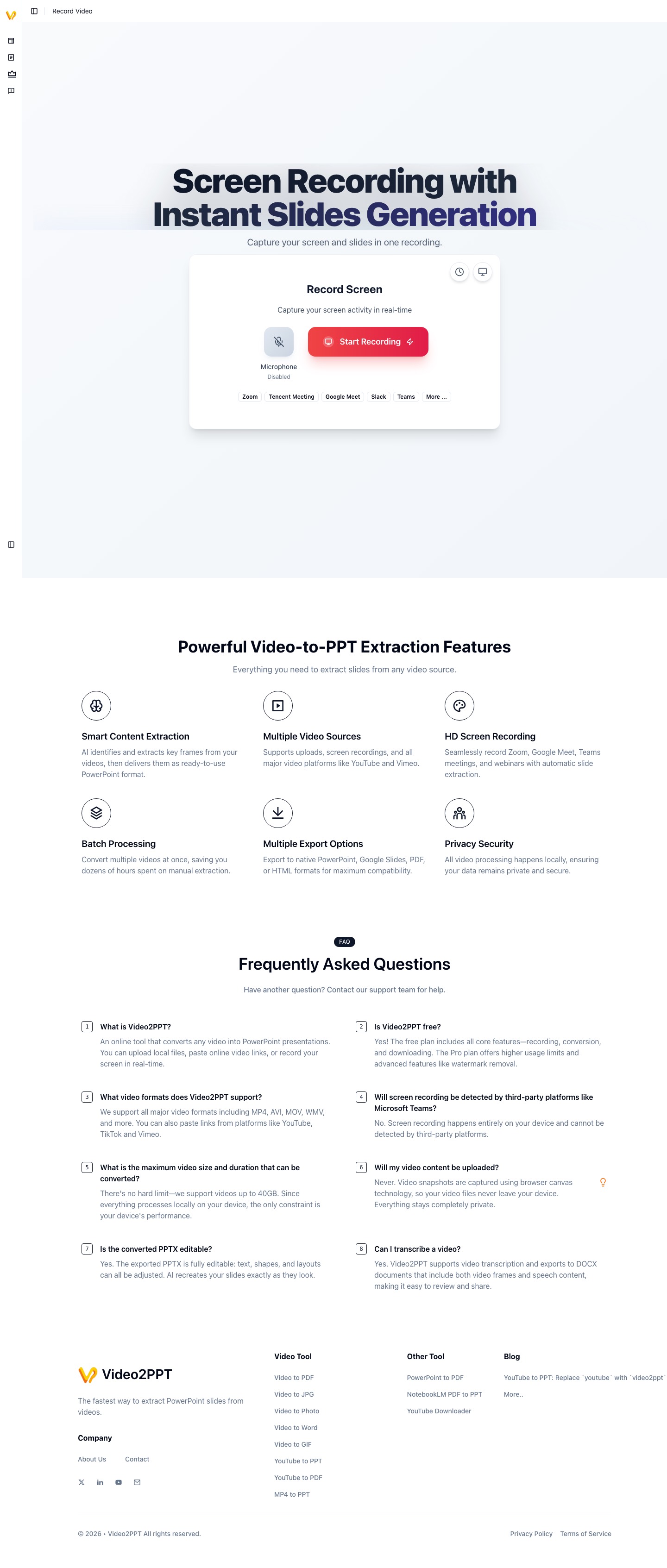
Screen recording workflow
Video2PPT's recording workflow, used to turn screen activity into reusable presentation material.
GIF walkthrough placeholder
These placeholders mark the exact workflow moments that should become short product GIFs.
GIF slotGIF placeholder: record screen, preview, convert
Replace this image with a GIF showing screen permission, recording controls, recorded preview, and the transition into the slide grid.
Step-by-step workflow
- 1Open the screen recording workflow and choose a readable recording quality such as 1080p.
- 2Grant browser screen-sharing permission and record the app, tab, meeting, class, or demo.
- 3Preview the recorded WebM video and save it locally if you need a backup before converting.
- 4Send the recording into the slide extraction workspace and review captured moments.
- 5Export selected frames as a training deck, recap, bug reproduction note, or implementation handoff.
In-product details
Recording engine
The screen recording flow uses browser media capture, quality presets, optional microphone/system audio handling, and permission-specific error states.
Workspace handoff
After recording, the app can pass the recorded video blob and density data into the video-slides workspace for review and export.
Data-loss guardrail
The product includes a warning pattern around saving a recorded video before upgrade flows so users do not lose an unsaved recording.
Record with the final deck in mind
Avoid fast scrolling, tiny text, and frequent window switching. A clean recording makes it much easier to extract useful slides later. For software demos, pause briefly after each important UI state so the extractor has a stable moment to capture.
How the product connects recording to slide review
The recording page stores the recorded video blob in the current browser session and routes it into the video-slides workspace. The slide preview then uses the same selection, crop, density, and export controls as other Video2PPT workflows.
Use cases for teams
Screen-recording-to-PPT is useful for support walkthroughs, onboarding, feature demos, bug reproduction notes, QA handoffs, implementation reviews, and converting live demos into reusable documentation.
Clean up the deck
Remove login screens, idle moments, loading screens, and duplicate UI states. Add short section titles after export if you want the deck to become internal documentation rather than raw visual evidence.
Limitations and quality checks
- Source clarity matters: small text, fast scrolling, motion blur, or camera-only footage can reduce slide quality.
- Most video-derived slides preserve visuals as images; editable text reconstruction requires a separate OCR or editable-PPT workflow.
- Review the extracted frames before export so repeated transitions, login screens, and irrelevant moments do not become final slides.
FAQ
Can I convert Zoom or Teams recordings?
Yes, if you have a local recording file or a supported video source. Screen-sharing recordings usually produce better decks than camera-only recordings.
What resolution should I record at?
Use a resolution where text remains readable after being placed on a slide. 1080p is a practical baseline for most screen recordings.
Can this replace writing documentation?
It can create a strong visual first draft, but important workflows still benefit from short written explanations, section labels, and cleanup of irrelevant screens.
Should I save the recording before converting?
If the recording is important, save it locally before doing anything that could refresh the page or change account state. The app can convert the current recording, but the original file is still your safest backup.